If you've ever refreshed a page five times just to check whether something changed, you're not alone.
Pricing updates, policy edits, job postings, product releases, and documentation tweaks often land quietly — and the teams who notice first get the advantage.
This guide covers the top 10 ways to track website changes, from quick DIY methods to fully automated monitoring. You'll also see how to turn noisy diffs into typed fields, each with its previous and current value, so you can act faster with less effort.
What "track website changes" actually means
Tracking website changes can mean different things depending on your goal:
- New content discovery (new pages, new articles, new mentions)
- Edits to an existing page (pricing tweaks, updated requirements, rewritten policies)
- Visual or layout changes (design updates, CTA swaps)
- Structured updates (via APIs, RSS feeds, changelogs)
Most people start with discovery tools. But if you care about a handful of specific URLs, you need item-level change tracking: each product, plan, or post on the page followed as its own item, with a history of when it appeared, what changed, and when it was removed.
The top 10 ways to track website changes
1) Manual checks (refresh + scan)
This is the default approach: open the page, refresh, skim, repeat.
Best for:
- One-off checks
- Pages that change rarely
Weak for:
- Catching subtle edits
- Tracking multiple pages or competitors
- Keeping a reliable history
Manual checks don't scale. If your workflow includes bookmarks + reminders + "I think this changed last week", you're already feeling the cost.
2) Copy/paste snapshots (notes, docs, or spreadsheets)
A small improvement is to copy key sections into a doc and compare later.
Best for:
- Teams that need a lightweight audit trail
- Text-heavy pages (terms, documentation, policies)
Weak for:
- Frequent changes
- Pages with a lot of boilerplate (nav, footer, related links)
It works—until you're tracking more than a couple pages.
3) Browser screenshots (visual tracking)
Screenshots help when you care about what users see: hero sections, pricing tables, UI pages, marketing layouts.
Best for:
- Design and marketing changes
- Quick before/after proof
Weak for:
- Small text changes
- High frequency tracking
It's also hard to search screenshots later or summarize what changed.
4) RSS feeds (when they exist)
RSS is still one of the cleanest ways to follow updates when a site supports it.
Best for:
- Blogs
- Public changelogs
- News sites with good feeds
Weak for:
- Sites without RSS
- Edits to existing pages (RSS often won't reflect them)
If your targets publish RSS, use it. But it won't cover most modern marketing pages and many documentation sites.
5) Email newsletters (official, but incomplete)
Newsletters are useful for major announcements, especially from vendors you rely on.
Best for:
- High-level product updates
- Official communications
Weak for:
- Quiet edits to pricing, limits, or policies
- Day-to-day monitoring
You get what they choose to announce, not what actually changed.
6) Google Alerts (great for mentions, not for edits)
Google Alerts is helpful when you want to know when something is newly indexed.
Best for:
- Brand mentions
- News discovery
- New pages appearing across the web
Weak for:
- Tracking changes to a specific URL
- Fast detection (indexing can lag)
If you're trying to watch "this page" for edits, Google Alerts is usually the wrong tool.
7) Social monitoring (useful signals, high noise)
Some changes appear first on social: announcements, launches, policy updates.
Best for:
- High-signal sources you already trust
- Creator/company announcement channels
Weak for:
- Reliable coverage
- Quiet edits on web pages
Social can complement a monitoring system, but it shouldn't be the system.
8) Website change monitoring tools (detection)
These tools watch a specific URL and notify you when something changes.
Best for:
- Pricing pages
- Job boards
- Policy and compliance pages
- Competitor monitoring
Common failure mode:
- You still have to read raw diffs, interpret changes, and share a summary.
Detection is only half the problem. The real time sink is what happens after "something changed".
9) Visual regression monitoring (pixel diffs)
Visual regression tools compare screenshots automatically and are popular for QA and UI workflows.
Best for:
- UI regressions
- Layout changes
- Tracking marketing page changes visually
Weak for:
- Text-focused workflows
- Pages that change minor visuals frequently (banners, rotating modules)
Pixel diffs are powerful, but can create alert fatigue unless configured carefully.
10) Build your own script (fetch + diff + alert)
If you have engineering resources, you can build a small monitoring pipeline:
- Fetch HTML on a schedule
- Extract the relevant section
- Compare with previous versions
- Send alerts (email)
Best for:
- Highly customized monitoring needs
- Internal systems
Weak for:
- Maintenance (page structure changes, anti-bot controls)
- Operational overhead (hosting, retries, storage, alert routing)
DIY can work, but it becomes another system to maintain.
If what you want is the change data inside your own systems, you can skip the fetching and diffing: BriefPanel has a REST API, an MCP server, and signed outbound webhooks that send each new, changed, or removed item. See BriefPanel for developers.
The simplest workflow upgrade: monitoring + typed change fields
Most teams don't need more alerts.
They need:
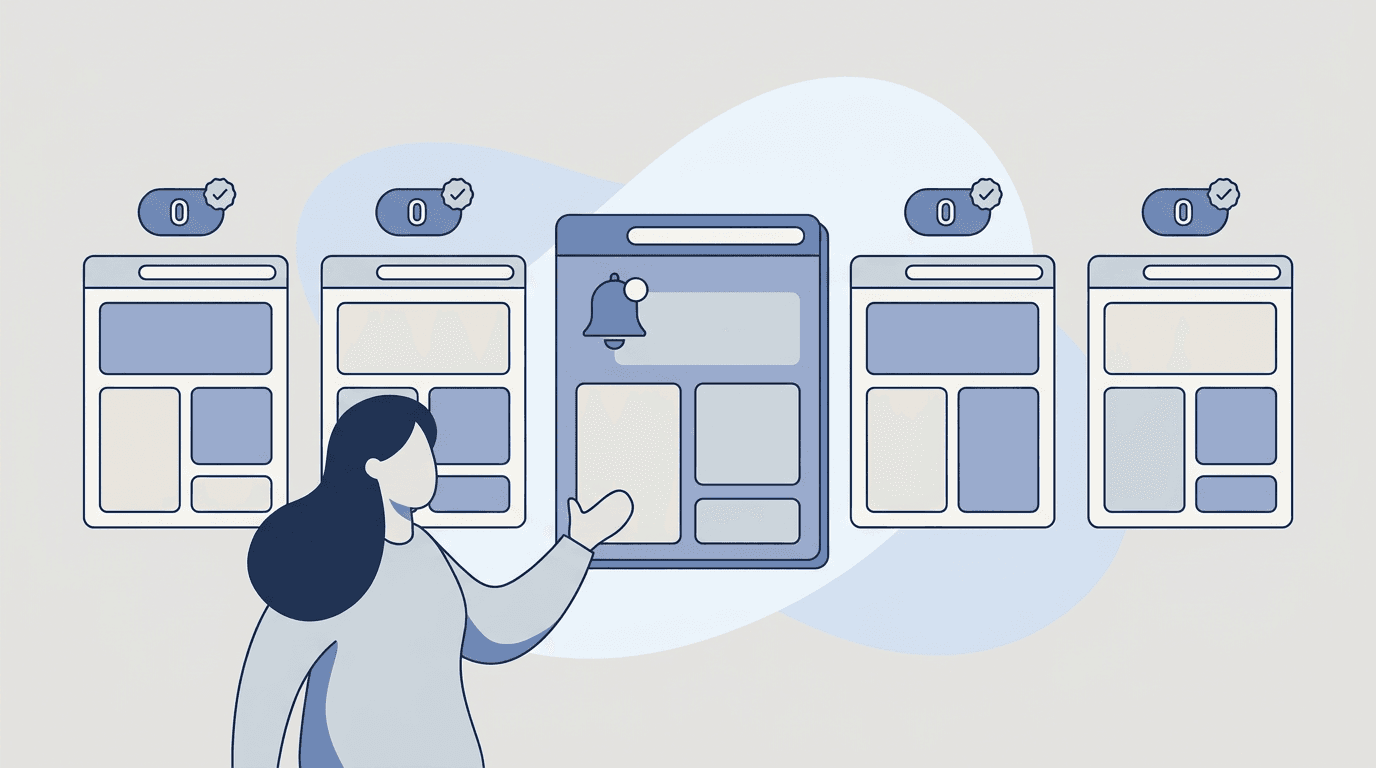
- fewer false positives (ignore nav/footer/related links)
- a clear explanation of what changed
- a shareable record of the field that moved (instead of raw diffs)
That's what BriefPanel is built for.
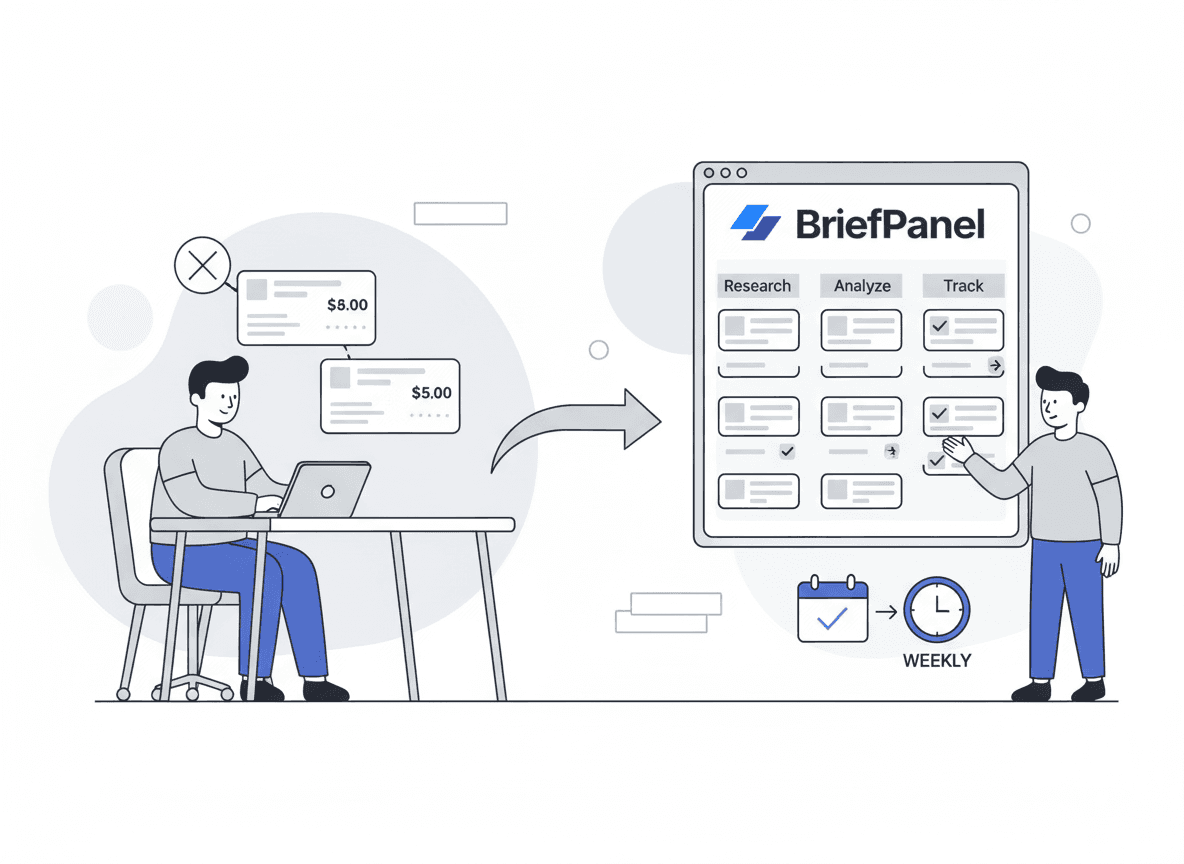
BriefPanel monitors the pages you care about and turns changes into typed fields, each with its previous and current value, so you can read them in seconds.
Want to stop manually checking pages? See how BriefPanel compares to other change monitors →
What to look for in a website change tracking tool
If you're comparing options, prioritize:
- Item-level history (each item on the page, with which field changed from what to what, not just "the page changed")
- Noise reduction (filter out boilerplate, and skip a kind of update you never need; in BriefPanel, "Don't show updates like this" keeps those updates in the history but stops notifying you)
- Alerts where your team reads (email, push, or a Slack/Discord channel through a webhook)
- Flexible check frequency (hourly for critical pages, daily for the rest)
- Digest mode (a calm daily workflow instead of constant pings)
- Shareable change records (so monitoring creates action, not busywork)
Quick decision framework
| Your goal | Best option |
|---|---|
| Discover new mentions across the web | Google Alerts |
| Follow blog-style updates | RSS / newsletters |
| Track UI changes visually | Visual regression tools |
| Track edits to specific URLs | Website monitors |
| Track URL edits and instantly understand what changed | BriefPanel |
Get your first BriefPanel monitor running in 10 minutes
- Pick 5–15 URLs you care about (pricing, docs, policies, job pages).
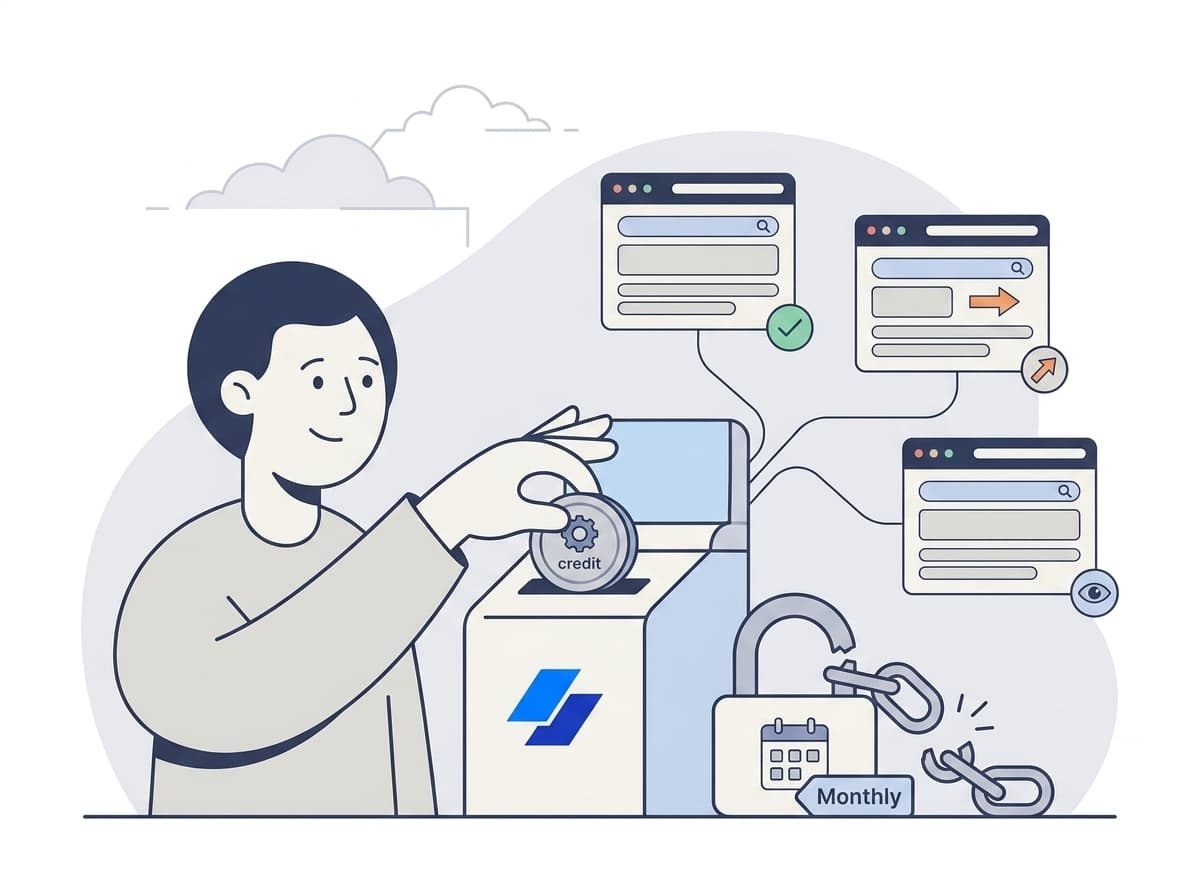
- Set different cadences based on urgency (every 30 minutes, 1 hour, 6 hours, or 24 hours). Each check spends credits, so check less often where you can.
- Add simple AI Instructions like:
"Track each price, date, requirement, and policy clause on the page as its own item. Treat a changed number, date, or requirement as an update. Ignore navigation, footer, and related links."
- Review the daily digest and share it with your team.
See how BriefPanel compares to other change monitors →